How to Remove Windows Store Apps Using Intune in Windows 11 (25H2)
How to Remove Windows Store Apps Using Intune in Windows 11 (25H2)
If you manage Windows devices with Microsoft Intune, you’ve probably had to deal with unwanted pre-installed apps like Xbox Game Bar, MSN Weather, or Sticky Notes. Starting with Windows 11 version 25H2, Microsoft finally introduced a native policy that lets you remove these built-in Microsoft Store apps directly through Intune—no scripts or complex cleanup tools required.
This guide explains everything you need to know about using this new feature: how it works, what you need, and step-by-step instructions to deploy it in your environment.
🧠 What This Feature Does
The new policy, “Remove default Microsoft Store packages from the system,” lets admins prevent certain apps from being provisioned on new or upgraded devices.
That means:
- These apps won’t appear for new users signing into a device.
- It’s supported only on Windows 11 Enterprise and Education editions (25H2 or later).
- It doesn’t uninstall apps that are already installed for existing users—it only prevents new provisioning.
If you manage Windows 11 Pro or Home editions, you’ll need to rely on PowerShell scripts or other cleanup tools instead.
✅ Before You Start
Make sure you have the following ready:
- Windows 11 Enterprise/Education, version 25H2 or later.
This policy won’t work on earlier builds. - Microsoft Intune (Endpoint Manager) with admin permissions to create device profiles.
- Target groups — ideally, test this policy first on pilot or non-critical devices.
- Awareness of dependencies — some built-in apps (like Camera or Snipping Tool) might be required by users or certain workflows. Review before removing.
⚙️ Step-by-Step: Remove Store Apps Using Intune
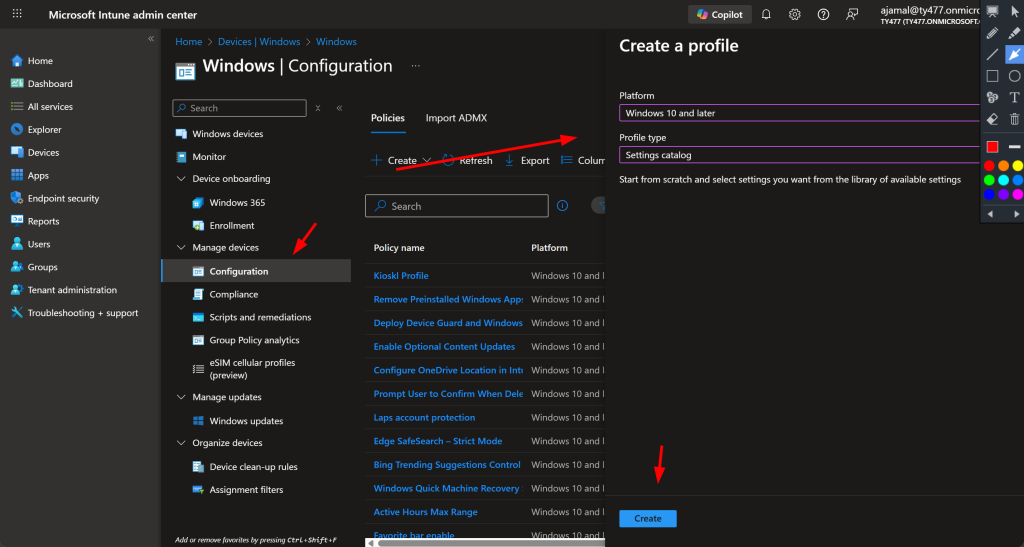
Option 1: Using the Settings Catalog
This is the easiest and most direct way to deploy the policy.
- Go to Intune admin center → Devices → Windows → Configuration profiles.
- Click Create profile.
- Platform: Windows 10 and later
- Profile type: Settings catalog
- Name your profile — for example,
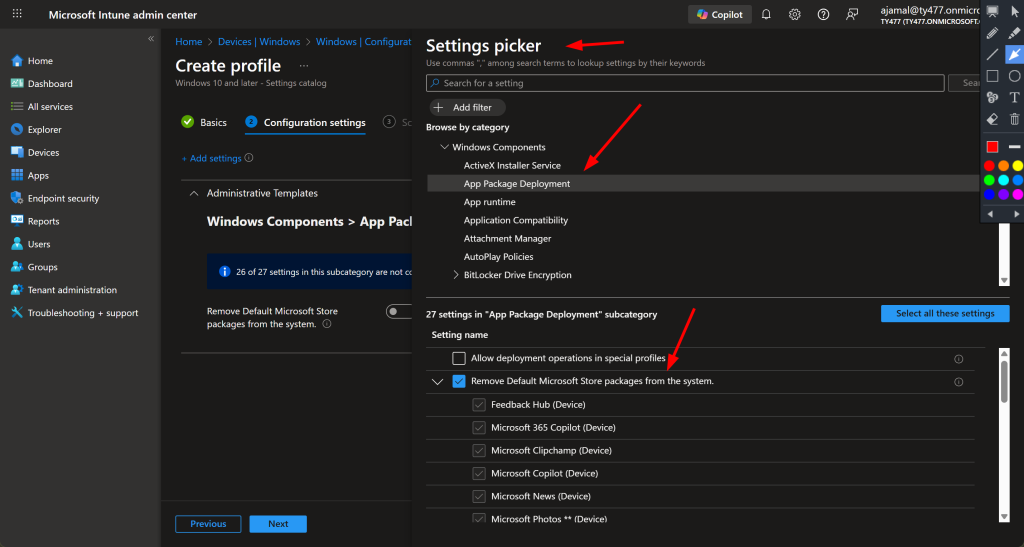
Remove Default Store Apps - 25H2. - Under Settings picker, choose:
- Category: Administrative Templates → Windows Components → App Package Deployment
- Setting: Remove default Microsoft Store packages from the system
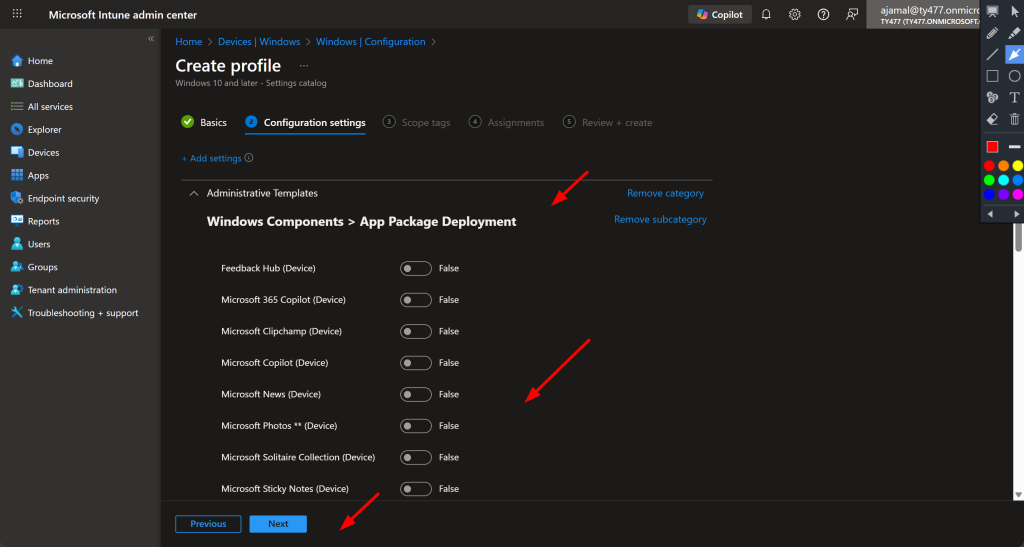
- Set the policy to Enabled.
- Choose which apps to remove. You’ll see a list of default apps like:
- MicrosoftStickyNotes
- XboxGamingApp
- BingNews
- Weather
- OfficeHub
- Assign the profile to your device groups.
- Review and click Create.
Once deployed, new users signing in won’t see the removed apps.
Option 2: Using a Custom Configuration Profile (CSP)
If the setting doesn’t appear in your Intune tenant yet, you can use a custom OMA-URI profile.
- In Intune, go to Devices → Configuration profiles → Create profile.
- Platform: Windows 10 and later
- Profile type: Custom
- Under OMA-URI Settings, click Add:
- Name: RemoveDefaultMicrosoftStorePackages
- OMA-URI:
./Device/Vendor/MSFT/Policy/Config/ApplicationManagement/RemoveDefaultMicrosoftStorePackages - Data type: String
- Value:
<enabled/> <data id="BingNews" value="true"/> <data id="MicrosoftStickyNotes" value="true"/> <data id="XboxGamingApp" value="true"/>
- Assign the profile to your target device group.
- Sync your devices to apply the change.
🔍 How to Verify the Policy Worked
To confirm the policy applied successfully:
- Registry Check:
Openregeditand navigate toHKLM\SOFTWARE\Policies\Microsoft\Windows\Appx\RemoveDefaultMicrosoftStorePackagesYou should see the apps you removed listed as entries. - Event Viewer:
Go to Applications and Services Logs → Microsoft → Windows → AppxDeployment-Server → Operational.
Look for Event ID 762, indicating successful removal or prevention. - Intune Portal:
Under the Configuration profiles section, check that the status shows Success for your devices.
⚠️ Important Limitations
- This policy only affects new user profiles — apps already installed for existing users won’t be removed.
- It’s available only on Enterprise and Education SKUs.
- Avoid applying both GPO and Intune versions of the same policy to prevent conflicts.
- Devices must be online and synced with Intune before user login for the policy to take effect.
🧩 Best Practices
- Test before rollout: Always deploy to a small pilot group first.
- Combine with Autopilot: Apply during Enrollment Status Page (ESP) to ensure apps are removed before first user login.
- Communicate to users: Let them know why certain apps are missing to avoid confusion.
- Cleanup for existing users: Use PowerShell scripts (like
Get-AppxPackage/Remove-AppxPackage) to clean old profiles if needed. - Audit results regularly: Monitor Intune’s deployment status and device compliance.
🧾 Example XML Snippet for Custom Deployment
<enabled/>
<data id="MicrosoftStickyNotes" value="true"/>
<data id="MicrosoftBingWeather" value="true"/>
<data id="MicrosoftPeople" value="true"/>
<data id="XboxGamingApp" value="true"/>
You can adjust this list based on your organization’s preferences.
🧭 Summary
Removing built-in Store apps through Intune is now simpler than ever with Windows 11 version 25H2.
This new policy helps IT admins maintain a cleaner, faster Windows environment—without relying on scripts or manual cleanup.
For the best experience:
- Use Enterprise or Education SKUs.
- Apply during provisioning (Autopilot stage).
- Combine with communication and cleanup for existing users.